or, how to program with Google 😉
There’s a couple of things that have bugged me on the weblog; I decided to try and fix them by modifying the WordPress code but as is traditional, I don’t want to bother learning more than I have to (I do enough of that at work – the latest Microcontroller we’re using has about 1500 pages of documentation!)
So, annoyance #1: In WordPress when you click on the comments link from the main page, you go to the top of the list of comments, then you have to scroll down to the bottom where you can add a new comment … I wanted to have a link at the top saying “post new comment” that would send you to the bottom. Well I managed that by modifying the comment php, finding a place to add an sequence, and placing a link to it.
But it still didn’t seem quite right – I wanted to go to the comment post area and put the cursor into the text box! Of course I had no idea if it was possible, but I felt that it should be … so guessing it would be like Visual Basic (which I do use), I searched Google, and found this link – nice 🙂
So I added javascript:document.forms[0].comment.focus() to the WordPress comments code, and magically, it worked! I love it when a plan comes together like that 😉
OK, annoyance #2. Whenever I add a picture to my weblog entries, I always add the “width=” and “height=” to the stuff; this is because when I see webpages load with lots of pictures that don’t have width/height specified, the page display constantly jumps around as new images get loaded in and shove the later text/pictures down … you see it especially when visiting the MINI2 or NAM forums in threads with lots of pictures and you try to go to the last post.
So I’ve always added the image size details, so even before the browser loads the image, it knows what space to reserve for it. But I do this manually, by right-clicking reading “properties”, noting the values, then typing the width=”…” height=”…” into the weblog entry page.
So today I decided to try and automate it. I Google’d to a webpage that told me about getimagesize which sounded useful … but then I tried searching through all the WordPress code to see where the “img” button is set up (for the non-rich editor) …
Problem! Finally learned that the code is in quicktags.js which is Java, not php.
So off we go again into Google world, looking for a Java way to get image width/height … this took longer than expected but finally I found this page which talked about getting the information from a file (file://). But maybe it’ll work for a http:// link too?
So I edited the quicktags.js file and threw in a few extra lines of code:
function edInsertImage(myField) {
var myValue = prompt(‘Enter the URL of the image’, ‘http://’);
var img = new Image();
if (myValue) {
img.src = myValue;
myValue = ‘<img src="'
+ myValue
+ ‘” alt=”‘ + prompt(‘Enter a description of the image’, ”)
+ ‘” width=”‘ + img.width + ‘” height=”‘ +img.height
+ ‘” />’;
edInsertContent(myField, myValue);
}
}
Then I tested it – and it worked, immediately! Just like that 😀
Now to annoyance #3. I haven’t solved this one yet – so if anyone wants to comment on “the story so far”, feel free.
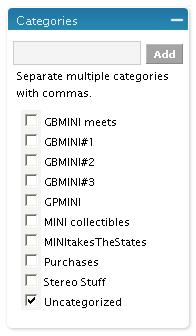
When I write a new post in WordPress, it lists categories to the side – but I now have 9, and the list is too big for the box so there’s a vertical scroll bar 😦
I want all the categories to be listed, with no scroll bar, stretching the box as much as necessary. I’ve got a large monitor and I’d like to use it.
So again, I’ve searched around the WordPress files, and got as far as determining the list is something to do with
– if I remove that (and the matching
), the categories are all listed with no scroll bar.
But I think the categorychecklist might be important – for one thing, there seems to be (more) Java code which can add a new category “on the fly” while posting, and modifies the categorychecklist … I think I can happily not use that feature, but I’m not sure if there’s a better way.
I haven’t yet found where the categorychecklist is defined, and told to be only a certain height … but then, it’s probably CSS and I’m still trying not to learn about them!
There’s still more stuff to be done …
Why for example is the sidebar text a different size in the Gallery to what it is in the weblog? Oh, it isn’t today – apparently my recent mods have just about fixed it.
All this is CSS stuff, a big pain! It’s all nested one inside another, and later definitions can override earlier ones – hard to plow through to figure what’s really specifying what! What’s needed is an editor that can identify what CSS is applied to a particular bit of text, and how it got to be defined. Anyone?
Meanwhile, I console myself that the layout is OK 😉
UPDATE:
Jason fixed my Categories annoyance – hooray 🙂
 M&I / GBMINI
Ian,
You can always send me the css and I could take a look. CSS is very easy… in fact, once you know it you will really appreciate it.
Send it my way if you like. 🙂
I think this is in the js for the admin page. I tried changing every div in wp-admin.css and nothing worked.
the post page calls the following…
/wp-includes/js/fat.js
/wp-includes/js/tw-sack.js
/wp-includes/js/dbx.js
I think dbx.js is going to be your best bet. I looked in there buy my editor couldn’t make heads or tails of it. Perhaps you’ll have better luck.
Oh yea, I’m told that the latest dreamweaver helps with css. The last time I used it tho I had to spend over 10 hours fixing all the ugly code it created. Ick.
Thanks guys …
Maybe I need to buy a Mac and use Xyle!
Or you could try TopStyle. Problem is that it’s spendy and doesn’t really do what you are looking for, although it is a fantastic code editor. Whatever you do, stay away from TopStyle Lite. It’s UI does some of the weirdest stuff I have ever seen.
I need a mac so I can use Safari. I think I like your excuse better 😉
Ian,
I do this stuff for a living, so if you’re really stuck, let me know and I’ll fix it.
As for something that will tell you what CSS rule is doing what, if you want to get geeky, use Firefox and install an extension called “Firebug”. http://www.getfirebug.com/
It has an inspector where you can click on something on the page and see some details about it. There’s a CSS view, and it will show you what rules are being applied to the element, and what CSS / HTML file they are coming from. But, it gets pretty geeky.
Hang on, I’ll fire up firefox and tell you…
Ooops, I guess you’re talking about the editing page, not the one I see when looking at your site. So, I cannot tell you what’s going on….
Install firebug in firefox, restart firefox. Load up the page and open the firebug panel (click the green checkmark / red x in the lower right of the firefox window if firebug isn’t open).
Click inspect, then click on the “container” that has the scrollbar – there’s a handy blue outline to show you what you’re inspecting. If you miss, you can select a new thing in the firebug panel by clicking on the HTML source.
Once you have the right thing selected, click on the “style” tab in firebug. Then, in the “Options” drop down in firebug, check “show all styles”. Then scroll around looking for something that sets the height for that container. Then, change the height, or remove the height declaration altogether.
ignore all that.
Most likely, adding the following to one of the css files will work:
div.categorychecklist{
overflow:visible!important;
}
will do the trick.
That’s just MAGICAL Jason – I altered admin.css to read:
#categorychecklist { MARGIN-RIGHT: 6px; overflow:visible!important; }
and now the local file copy does just what I want – BRILLIANT!
Now to modify the web server file to get the same effect 🙂
Nice work, boys. I’d just like to point out that JavaScript != Java. A little detail, but there you go. 😉