R56 NAV/stereo: iPod

GBMINI#5 came with the iPod interface installed – good news because I’m not sure I’d have liked to pay $500+ for it!
In GBMINI#5, the iPod cable is installed into the “secret” storage space above the glovebox – you push the dash trim piece (firmly, in the center!) to open it, and inside is an iPod connection cable; like most iPod interfaces, the iPod goes “dead” when connected, just displaying a graphic and “OK to disconnect” screen (the storage area is rubber lined, and the cable helps to hold the iPod, so it doesn’t rattle around – good):


When you’re planning music, the NAV screen has a quite nice display showing the current track, along with “before & after”; there’s a submenu option to toggle “Details” on and off, which gives you the artist as well as the song title, for the current track, but that’s pretty well where the nice iPod interface ends! For example, here’s what you might think is a nice menu of artists on the iPod:

What’s so bad about that?
Well: notice first that we have “CD2” selected, and above we had “CD1” selected. The iPod interface is implemented by mimicking a CD changer; CD1 gives a menu of music in Playlist order, CD2 is Artists, CD3 is Albums, CD4 is Genres, CD5 is Podcasts and CD6 is All Songs.
So to get to the Artists list, I had to switch from CD1 to CD2; to do this you simply push the joystick up, a couple of times, then rotate, then click. But then comes the really “exciting” part … I had to wait EIGHTY SECONDS for the Artists menu to appear!


When it’s finally ready, it automatically starts to play the first song by the first artist – of course that’s probably not what you want, so simply push up, click, rotate left, and click. Now finally you have a list of Artists, with the first alphabetic artist shown.

OK, so we want to listen to a different artist. How about Supertramp?
There’s no way to quickly jump to a specific letter of the alphabet, or even to move by more than one menu entry – the only choice is to rotate the joystick to go down through the Artists; this of course takes FOREVER (worse still because the display update is slower than the rotation speed!)
Luckily, it doesn’t take quite as long as you’d expect – cleverly, the iPod interface is limited to 255 menu entries! So we actually can’t get to Supertramp anyway; in fact the screen above with Lucero as the last item, is the end of the menus.
Alright then, how do we get to Supertramp?
Well, I could build lots of Playlists to set up different ways to access my music – maybe a Playlist for “A”, “B”, etc … but I saw someone post online that method doesn’t work because the menu gets overloaded and still runs out!
Plus, the menu is only one level deep – for example, here I accessed via CD4 / Genres and called up “Electronica”:

As you can see, what appears is just a list of songs. There’s no sub-menu of Artists or Albums first … it looks like the song list here is in Artist order (it’s displaying tracks by AudioBody), so I guess with enough knowledge of what’s in your iPod you might be able to scroll down the list to get to the song you want. Although I suspect the list of songs might still stop at 255 entries!
In the end, I’ve decided to use Random play which hopefully will give me a random choice from all the songs in the iPod:

Of course you have to be careful what you have selected – counter-intuitively, “Random All” apparently randomly selects from a subset of all music in the iPod, depending what you have selected; it acts more like you’d expect “Random Directory” to work …

Infuriatingly though, when it’s playing in Random mode, the skip previous/next buttons don’t skip to a different random track!
Suppose you have Random play active and it selects an Artist you don’t fancy listening to today. In GPMINI with the Alpine HU I click -> (next track) and get some new random song. But in GBMINI#5, if I click -> I get the next song from the same Artist/Album; exactly what I don’t want!
The only choice is to click the joystick to turn off Random play, then click again and turn it on again.
I really wish the iPod interface was better. It should be much faster (my Alpine/iPod interface is instantaneous when I select by Artist/Album/etc), and there should be no problem with having music collections of more than 255 Artists/Albums.
As it is, I don’t expect MINI to do anything different, and it will be hard for an aftermarket company to develop something – the MINI is becoming more and more proprietary and difficult to change.
I wonder if the non-NAV iPod interface is any better. Maybe it’s slow on the NAV because it has to display more on the bigger screen? I hope one day to try my iPod in a non-NAV R56.
As it stands, I probably would still have to spec this iPod interface in a future R56, since the only other choice is connecting via the AUX plug and using the iPod controls (and honestly, trying to wave your finger around the iPod controls while driving is much worse than using the R56 NAV joystick!)

But much better is out there; why can’t we have it?
(anyone seen that Ford / Microsoft car advert where the driver presses a button an SPEAKS the Artist name to get it to play? sounds wonderful!)
Oh, nearly forgot – one more ludicrous limitation of the R56 iPod interface!
It doesn’t remember where you are in the current playing track, when you turn the car off – well, if you switch off for a short time it does remember, but after a few minutes it will revert back to the beginning of the track when you come back to the car! That’s really annoying when you’re listening to a long track, and never get to the end of it.

R56 NAV/stereo: CDs

For my next “MINI review” of the R56, I wanted to play some CDs and see how they were handled – I was particularly keen to see how the NAV display dealt with a CDR of MP3 tracks in different directories. So I burned a CDR with a selection of MP3 tracks, and took it out to play … but this is what I saw – strange. So then I tried an audio format CDR that had been handed out at a recent MINI drive – but it wouldn’t play that CD either!

Finally, I tried a regular purchased audio CD – and finally I got music out of it. But the display is rather sparse when playing a CD:

The line represents the music on the CD; you can step along the line from track to track using the MFSW buttons, or by turning the joystick. Below the line, the time in the current track is shown. I wonder if the play arrow moves smoothly along the line as the track plays, or just jumps track-by-track? Didn’t think to watch for that when testing, earlier.

You can press the joystick and call up a small menu for options like repeat and random; you can also access “Tone” from here, where you can adjust treble/bass/balance/fader – actually you can get to “Tone” from anywhere by pressing the joystick to call up the menu while listening to something, but there’s no easy way back! It’s not like you selected a sub-menu, instead “Tone” is just a shortcut jump to the Settings/Audio menu.

Curiously, the music I played sounded noticeably better (clearer, more low end) than the same music on my iPod – and there it’s encoded with 256K AAC, which in GPMINI is indistinguishable from the original CD … now I wonder if some of the poor R56 sound quality is due to the iPod interface rather than the car itself!
UPDATE:
This morning, GBMINI#5 successfully read and played the same CDR that I’d tried yesterday – possibly it has trouble reading CDRs when it’s cold? But anyway, the CD/MP3 interface is actually pretty good: you can access a list of directories, and sub-directories within that, down to the songs you want to play. Here’s some screenshots indicating the process:


One thing I’ve found particularly odd is that the CD player and the CD changer are treated as one CD-playing device – you can see here that “CD” (the single drive in the center console) and “CD1″/”CD2″/etc are all listed together; the effect is when you use the source button (button immediately left of volume knob in this picture) to step from one input to another, you get: FM(or AM), Sirius (if installed), CD(or CD changer), AUX (whether anything is connected to it or not).
You might expect that “iPod” would be one of the source choices – but since it is (poorly) implemented as a CD changer, it gets grouped with the CD; so what is selected is either the CD or an iPod track depending what you last selected.


I’d prefer to see FM/Sirius/CD/iPod choices – and I’d like the ability to turn off the AUX input if I don’t want to use it. Maybe it’s fine for everyone else, though.

R56 NAV/stereo: FM radio

To summarize, the stereo system on the NAV equipped R56 is a big let-down! Most important is the poor sound quality – it’s been a long while since I’ve heard a stock R50/53 MINI stereo, and of course comparing most systems to GPMINI is unfair, but I’m really underwhelmed by the R56 sound.
There’s close to no bass; if you turn the bass level up it doesn’t have a lot of effect (except distortion if you turn it up too much) – worse still, there’s just not much clarity to the sound. Coincidentally, I just came across this post on NorthAmericanMotoring which discusses replacing the speakers, which says “ALL are 4 ohm speakers and are as cheap as can be. NO tweeters anywhere. All drivers appear to be treated paper and sound like they have screw drivers stuck in them”; I’m not going to disagree with that 🙂

Having the NAV system moves the radio displays on to “the big screen”, which offers some small benefits – to begin with, here is FM radio in “manual” mode with the curved line representing the FM spectrum from 88MHz to 108MHz; you tune up and down by rotating the joystick (you can also use the MFSW buttons, or two tiny hard-to-reach buttons to the right of the volume knob on the center console – see this pic).
More practically, you can select “all channels” mode – now the line straightens out, and shows only received stations:

The line will “scroll” left and right as you rotate the joystick, so that all received stations can be accessed.
In the pictures above, “RDS” (radio data system) is turned off, and the stations are listed by frequency – but you can click on the joystick to call up a menu, and enable RDS, after which the stations are identified by their RDS station name – but now, the stations are listed in alphabetical station name instead of frequency, which I found a little confusing – especially since some stations don’t appear to broadcast sensible station names; I’ve seen some stations “cheat” their RDS by broadcasting the artist or track name as a station name – this “magically” makes an RDS radio display artist/track information, but I think it messes up this MINI concept of displaying stations by name:


Finally, you can store stations to a preset list, and then access your FM radio by “presets”; once again they display frequency if RDS is disabled, or station name if RDS is enabled (but thankfully they remain in preset order!):

Here you start to see how the NAV display screen is somewhat wasted – lots of screen space showing a list of stations, and just the little space bottom left where the current station information is displayed … on the other hand, there’s not much information to display for an FM station, although the RIVER was trying to wish someone a happy birthday!


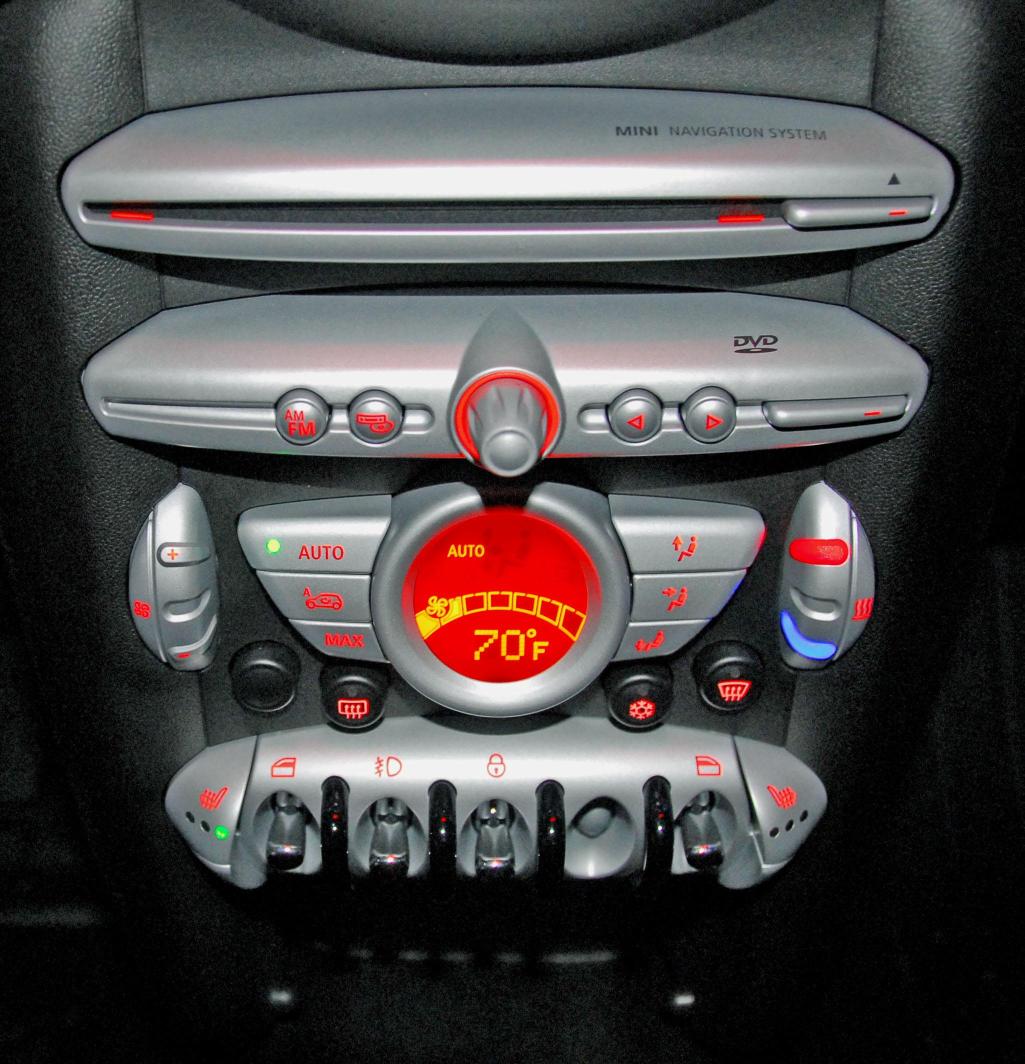
More downsides of the NAV / joystick combo include having very few dedicated buttons – as you can see here, there’s an FM/AM button (who uses AM these days?), a button to select the source (radio/CD/AUX), and left/right buttons (which can tune, step through CD tracks, etc). The steering wheel MFSW left/right buttons have the same function, and are easier to reach!
There are no preset select buttons – if you want to choose a preset station, you first have to be in “preset” tuning mode, then you can press left/right to step from one preset to the next; not as easy as just pressing the “5” button (or whatever one you want).

I’ll have to check out the R56 non-NAV radio, but I suspect it’s more practical than this NAV version, just because it will have dedicated buttons for many of it’s functions.